Five practical WhatsApp automations for small teams
Five practical ways small teams can automate WhatsApp to capture enquiries, answer common questions, route messages, manage bookings, and send timely customer updates.
If you run a business in this part of the world, WhatsApp is probably where many customers first contact you. Your number sits on the shop window, in an Instagram bio, on your website, or beside a QR code at the counter.
Someone sends a message and someone on your team (eventually) replies. Then the administrative work begins.
A new lead needs to be added to a spreadsheet. A booking request needs the right link. A support question needs to reach the right colleague. An appointment reminder needs to go out tomorrow. In a small team, those jobs often depend on whoever happens to be holding the phone the WhatsApp number is tied to.
The conversations may be easy to manage. The work surrounding them is where things slip.
WhatsApp automation can handle many of those small, repetitive steps. You do not need to begin with an elaborate chatbot or replace the way your staff talk to customers. A useful first workflow might simply save a new contact, alert a colleague, or send a booking link.
Here are five practical places to start.
Why this is easier now
The WhatsApp Business app is the familiar version used by millions of small businesses. It gives you a business profile, catalogue, quick replies, and an inbox that works much like personal WhatsApp.
There is also the WhatsApp Business Platform, commonly called “the API”. It allows software such as a CRM, booking system, helpdesk, or automation platform like Zapier to receive and send messages through your business number.
Until recently, businesses generally had to choose between the app and the Platform for a particular number. Moving to the Platform meant giving up the app and handling every human reply through another inbox. That was a poor trade for many small teams.
Meta's Coexistence feature, rolled out in 2025, allows the same number to remain in the WhatsApp Business app while connecting to the Platform. Staff can continue using the app while selected messages and administrative steps are handled by software in the background.
The Platform's rules still apply to messages sent through it. The important practical change is that adding automation no longer requires your team to abandon the interface they already know.
ℹ️
A quick guide to WhatsApp Business Platforms's messaging rules
Customer service window: For 24 hours after a customer's most recent message, the Platform can send free-form replies.
Messages outside that window: Businesses generally need to use a message template that Meta has reviewed and approved.
Charges: Messages sent through the Platform may incur fees based on their category and the customer's country. Rates and free allowances can change. Replies typed by staff in the WhatsApp Business app remain free.
Consent: Customers should opt in before receiving proactive notifications or marketing messages.
1. Capture new contacts automatically
A surprising number of leads never make it beyond a WhatsApp chat history.
A customer sends a message, someone answers, and the conversation continues. Unless a staff member remembers to copy the details somewhere else, there is no record in the CRM or lead tracker. Nobody can easily see where the enquiry came from, who owns the follow-up, or whether the person ever received a response.
A simple automation can check whether an incoming phone number already exists in your records. If it does not, the workflow creates a new contact in your CRM, spreadsheet, Notion database, or Zapier Table. It can save:
The customer's phone number and name
Their first message
The date and time of the enquiry
The source or business number they contacted
The assigned owner
The current follow-up status
If the contact already exists, the workflow can update the record or add the new message to its history instead of creating a duplicate.
This is a sensible first WhatsApp automation because it works in the background without impacting your team’s normal flow of reading and replying. This automation does not need to reply to the customer or make a judgement on your behalf; it simply makes sure the enquiry is recorded without anyone having to remember to do so manually.
2. Answer common questions with AI
Many businesses receive the same questions every day:
What time do you close?
Do you offer this service?
How much does it cost?
Where are you located?
Can I change my appointment?
An AI-powered workflow can read the incoming message, identify the question, and search an approved source for the answer. That source might be a FAQ page, service guide, price list, Notion page, or a spreadsheet maintained by your team.
When the answer is clear, the workflow sends a response immediately. When the question is unusual, sensitive, or poorly understood, it leaves the conversation for a person.
The narrowness is important. Giving an AI model unrestricted freedom to answer every customer question is asking for inventive pricing, imaginary policies, and confident promises your team never made. A safer workflow has a defined knowledge source and explicit handoff rules.
You might allow it to answer questions about opening hours and location while escalating complaints, refunds, medical questions, or anything involving a custom quotation. Let it handle the boring stuff so your team can focus on the more interesting or complex questions.
3. Route enquiries to the right person
Even when a message needs a human response, automation can make sure it reaches the right human.
A workflow can use AI to classify each incoming message by intent and urgency. The categories will depend on the business, but might include:
New sales enquiry
Existing customer support
Booking request
Billing or payment question
Order issue
Complaint
The workflow can notify only the responsible team member through Slack, email, Microsoft Teams, or another shared channel. A sales enquiry might go to the founder, a delivery issue to operations, and a billing question to finance.
Each person sees the messages relevant to them without having to monitor every conversation in the WhatsApp inbox. That means fewer distracting notifications, clearer ownership, and faster follow-up.
Making sure each person sees the messages that relevant to them
4. Turn enquiries into bookings
Booking requests often begin as ordinary chat messages:
A basic automation can recognise that intent and send the appropriate booking link. If the business offers several services, locations, or staff members, it can first ask one or two questions to select the correct calendar.
Once the customer books, a second workflow can update the CRM, notify the assigned staff member, and attach the appointment details to the contact's record.
You can build a more conversational system that reads calendar availability and proposes specific times inside WhatsApp. For many small businesses, that is unnecessary at the start. Sending the correct booking link removes most of the administrative work while leaving the booking platform to handle availability, time zones, rescheduling, and cancellations.
The workflow has one clear job: recognise when someone is ready to book and help them take the next step.
5. Send appointment or order updates
After someone books an appointment or places an order, WhatsApp can keep them informed without requiring staff to send every update manually.
A booking system could trigger:
An immediate confirmation
A reminder the day before
Directions or preparation instructions
A rescheduling link
A follow-up after the appointment
An order system could send:
An order confirmation
A payment reminder
A collection notice
A dispatch or delivery update
A request for missing information
These messages should be triggered by the system that holds the reliable status. The booking calendar should decide whether an appointment is confirmed. The order system should decide whether an item has shipped. WhatsApp is the delivery channel, rather than the source of truth.
Outbound messages may require an approved WhatsApp template, depending on when and why they are sent. Customers should also have given the appropriate consent to receive them. Once those pieces are in place, a short and timely WhatsApp update is often more useful than another email buried in an inbox.
📝
What is a WhatsApp message template?
A template is a reusable message that a business prepares in advance and submits to Meta for review. It can contain fixed wording alongside placeholders for details such as a customer's name, appointment time, or order number. Templates are required when messaging a customer outside the 24-hour service window and commonly cover confirmations, reminders, account updates, and marketing messages.
Start with one frequent, annoying, repeatable step
A simple test can help you choose what to automate: is the task frequent, annoying, and repeatable?
That is a good way to choose your first WhatsApp workflow. Look at what happens immediately before and after a customer message, then ask:
Does this happen often?
Does someone perform roughly the same steps each time?
Does a delay lead to a missed enquiry or a poor customer experience?
Can the workflow fail safely by handing the conversation to a person?
Contact capture and internal notifications are usually good starting points. They remove manual work without allowing software to speak for the business. FAQ replies, booking assistance, and proactive updates can follow once the underlying information and handoff rules are reliable.
Build around one message type first. Test it with real examples. Check what happens when information is missing, a customer changes the subject, or the automation cannot classify the message. Expand only after the simple version works consistently.
Keep people in the conversation
WhatsApp is personal partly because customers expect to reach a person. Automation should help your team respond reliably without making customers fight through a bot when they need judgement or empathy.
A few guardrails make a large difference:
Define which questions can receive an automatic answer.
Make the route to a person obvious.
Give AI an approved and maintained source of information.
Keep customer, booking, and order records in a proper system of record.
Monitor failed messages, duplicate contacts, and enquiries that received no follow-up.
Review outbound templates and consent requirements before sending campaigns or reminders.
The best workflow may automate only part of the journey. Software can capture the contact, classify the enquiry, and prepare the context. A person can take over for the conversation itself.
What we use at workFlowers
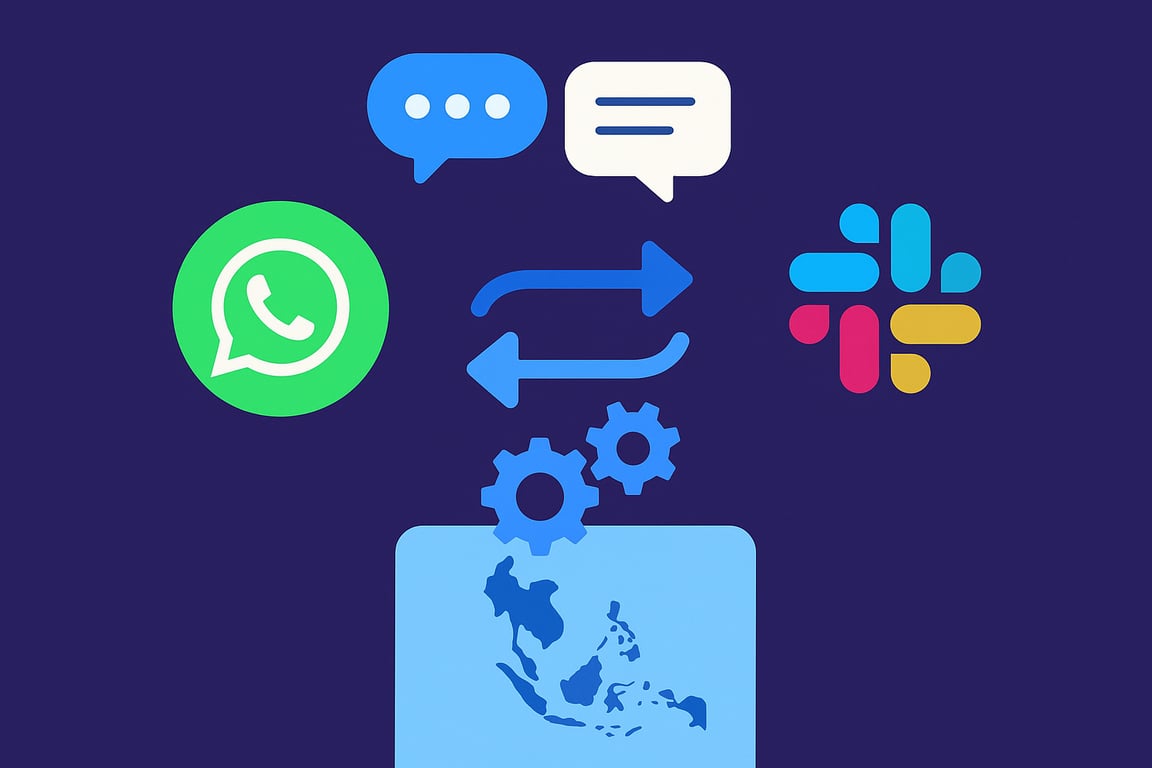
We route our own WhatsApp number into Slack through Zapier. Each incoming message appears in a shared channel, where the team can discuss it and reply without passing a phone around. The reply is sent back through our business number.
We recently moved the same production number to Coexistence. The Business app is available again, while the existing Zapier workflows continue routing messages through Slack. Messages sent by the automation appear in the app's chat history, and staff can still open the app and reply directly.
That combination is much more suitable for a small team. We can use automation where it saves work and keep the ordinary app for conversations that need a person.
Getting started
Choose one type of incoming message and write down what your team currently does with it. You will usually find one or two administrative steps that can be automated without redesigning the whole customer experience.
Start by capturing a contact, sending the correct booking link, or notifying the right colleague. Add AI only when the possible answers, information source, and escalation rules are clear.
If your business relies on WhatsApp and you want to explore a practical first automation, we'd be happy to help you map and build it.
Zapier’s Next Gen Zap Workflows move automation from drag-and-drop builders into TypeScript. Here’s what code-first workflows unlock, and what the learning curve looks like.